Social proof
ProblemFacebook treats personal profiles and business Pages as different things. Start hereCreate a Facebook Page, not a second personal profile
Facebook Page Guide
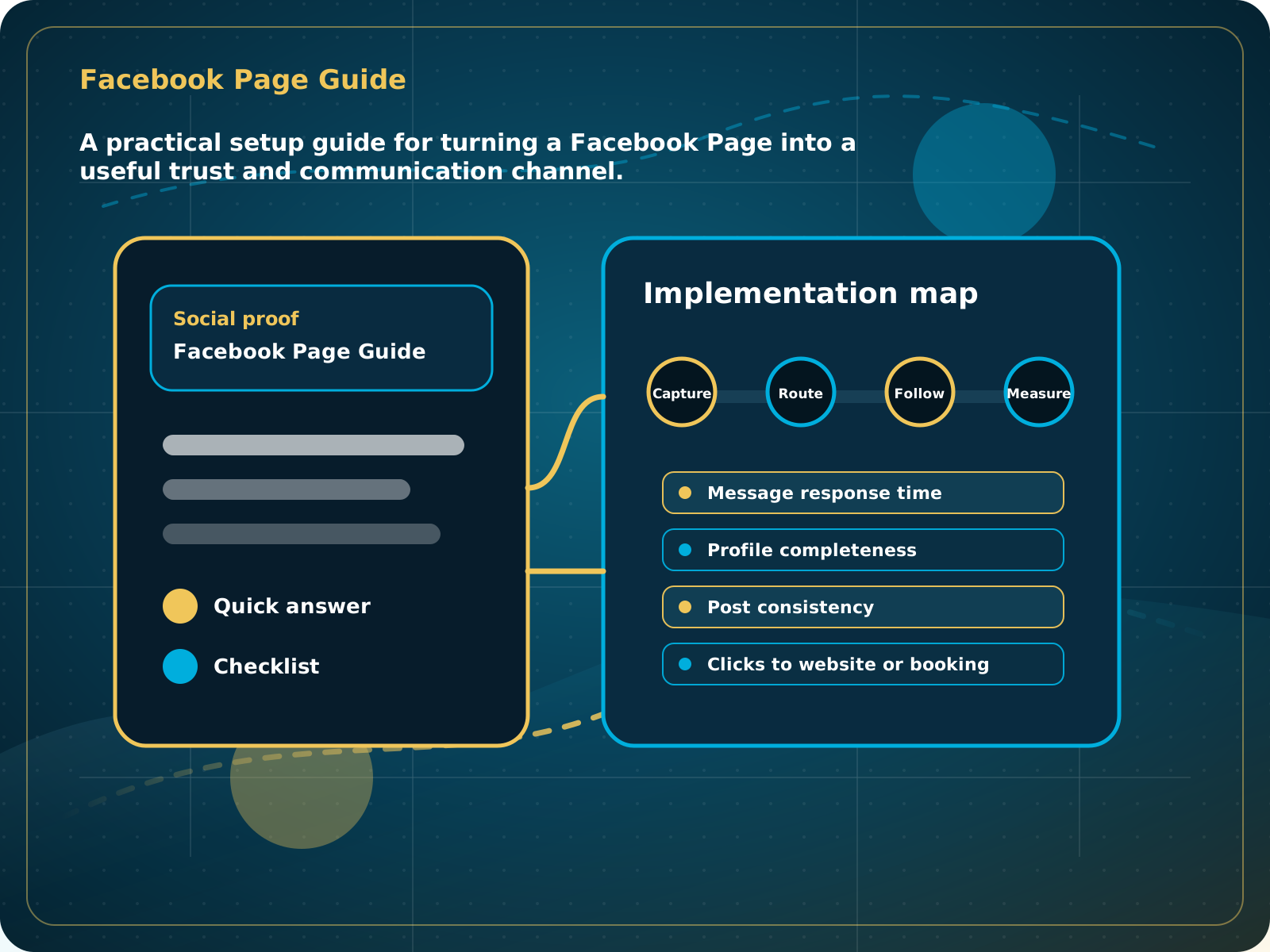
A practical setup guide for turning a Facebook Page into a useful trust and communication channel.
Leads capturedConnected
AI responseConnected
Reviews requestedConnected
Follow-up sentConnected
Facebook Page Guide
The business has a dedicated Page, correct access, clear contact paths, recent proof, useful posts, and social messages that can be followed up instead of buried.
Practical starting point
1Start from your real Facebook profile 2Create the business Page 3Add the trust basics 4Set one useful action button
Create a Facebook Page, not a second personal profile
A business should have a dedicated Facebook Page. Your real personal profile creates and manages that Page behind the scenes. Do not create a fake personal profile named after the business. A personal profile is for an individual and misses Page tools such as business details, Page access, action buttons, insights, and business integrations.
Sign in to the authentic profile of the owner or approved manager. From that profile, go to facebook.com/pages/create. The profile manages access, but the public business presence is the Page.
Use the real business name, the closest category, and a short description that says what the business does and where it works.
Upload the correct logo and cover image. Add the phone, website, service area, hours, services, email, and any location details customers need.
Choose the clearest next step, such as Call Now, Get Quote, Book Now, or Send Message. Test it from a phone after saving it.
A practical setup guide for turning a Facebook Page into a useful trust and communication channel.
Quick answer: Use a dedicated Facebook Page for the business, created and managed through the owner's real personal profile. Do not create a second personal profile that pretends to be the business.
What to know first
Facebook treats personal profiles and business Pages as different things. A real person uses an authentic profile to create and manage the Page, while the public Page represents the business and provides the proper business tools.
Keep this checklist nearby
- Create a real business Page from an authentic personal profile
- Use consistent branding, logo, cover image, and service description
- Set the right contact or booking button
- Give staff Page access instead of sharing passwords
- Post customer proof and useful education
- Route inquiries into the CRM where possible
Step by step
Put this into practice.
Use the steps in order the first time. Once the process is working, keep the parts your business actually needs and review them on a simple schedule.
Start from your real Facebook profile
Sign in to the authentic profile of the owner or approved manager. From that profile, go to facebook.com/pages/create. The profile manages access, but the public business presence is the Page.
Create the business Page
Use the real business name, the closest category, and a short description that says what the business does and where it works.
Add the trust basics
Upload the correct logo and cover image. Add the phone, website, service area, hours, services, email, and any location details customers need.
Set one useful action button
Choose the clearest next step, such as Call Now, Get Quote, Book Now, or Send Message. Test it from a phone after saving it.
Give access without sharing passwords
Use Facebook Page access or Meta Business tools to add approved staff and partners. Each person should use their own real profile and receive only the access they need.
Publish proof and useful answers
Post real jobs, before-and-after work, customer feedback, service explanations, seasonal reminders, and clear offers. Avoid turning every post into a sales pitch.
Connect messages to follow-up
Check Page messages consistently or route them into the LMS conversations process. A Facebook inquiry should get the same clear next step as a call or website form.
Common mistakes to avoid
- Creating a fake personal profile for the business
- Sharing one personal login with staff or vendors
- Only posting promotions
- Letting messages sit unanswered
- Using outdated service details
- Treating Facebook messages as separate from the sales process
What to measure
- Page completeness
- Page access and ownership
- Message response time
- Post consistency
- Clicks to website or booking
- Customer proof posts
When this is working
The business has a dedicated Page, correct access, clear contact paths, recent proof, useful posts, and social messages that can be followed up instead of buried.
How Lead Media Solutions connects this
Business Essentials helps route inquiries into the CRM so Facebook does not become another disconnected inbox.
Active LMS clients can connect the Facebook Page to supported social and conversation tools. Use the LMS Help Center for the current in-system connection steps, because access screens can change over time.
Best next step
Use the CRM and conversations inbox in Business Essentials when social messages need better tracking.
Related starting points
Choose the offer by the actual problem.
AI Receptionist
The business has a response-speed problem.
Test the AIFoundation System
The business has a trust and social proof problem.
Start Foundation SystemBusiness Essentials
The business needs the core operating system.
See Business EssentialsBusiness Essentials
Start with the 15+ page CRM-connected website inside Business Essentials.
Build the Core SystemGuide FAQ
Answer-focused summary.
What is the main point of the Facebook Page Guide?
Use a dedicated Facebook Page for the business, created and managed through the owner's real personal profile. Do not create a second personal profile that pretends to be the business.
Where should I start?
A business should have a dedicated Facebook Page. Your real personal profile creates and manages that Page behind the scenes. Do not create a fake personal profile named after the business. A personal profile is for an individual and misses Page tools such as business details, Page access, action buttons, insights, and business integrations.
Can Lead Media Solutions help implement this?
Yes. Active LMS clients can connect the Facebook Page to supported social and conversation tools. Use the LMS Help Center for the current in-system connection steps, because access screens can change over time.
Where can active LMS clients get platform instructions?
Use the Lead Media Solutions Help Center for current button-by-button platform walkthroughs. This guide explains the business process and best-practice setup around those tools.